20151206

UI progress

After a few months of doing nothing, I got motivation to resume working on the game. Thank you, /u/HappyGirlLucky!

My task is to migrate to Unity's new UI system, which lets me create a user interface that is not so hard on the eyes, and not a pain in the ass to use on mobile. First step was to flesh out some concepts in Inkscape - for details, see my earlier posts. Then, I exported all icons and the standard button shape to png files. In Unity, I made a Canvas object (Screen-space overlay), and I made a Game Object for each menu, and they all contain a Panel, and all the UI elements are on that panel. Not sure if this is the best practice, but the tutorial I was working from used this layout.

This is how the hierarchy looks:


And these are the corresponding menu screens:


For now, I hooked up some of the buttons - the Play button and the Map Editor button from the main menu, and the home button on the other two. Here is a gif in 1920x1080 landscape:


 For the portrait version, just watch the middle of the gif :D

20151031

UI design

Joel Spolsky wrote about good UI design here: http://www.ikoffice.de/downloads/Books/User_Interface_Design_For_Programmers.pdf (Yes, I know, I'm giving away someone's work for free. I hope that as the CEO of StackOverflow he doesn't mind this.)

I know I've read it at least twice since my boss suggested it at one of my jobs, and I really enjoyed reading it. Most of the points seemed straightforward and logical, served in an easy-to-understand and fun way. However, I can't remember a single point of the book. In spite of this, I'm sure the things I've learnt from it are influencing my UI design methodology to this day.

So here I am, developing a game that should've been finished months ago I want to get on the most types of devices possible, each of which has different input methods, different screen sizes, and different metaphors established. How do I deal with it?

Using an app on a PC is easier than using the same piece of app on a mobile device. You have bigger space on the screen, finer and more diverse input methods, and usually more horsepower. Probably these are the main reasons why apps made for a desktop computer are typically more complex, whereas apps on mobile devices usually focus on one thing.

How does it affect us as an app dev? If you are lazy like me, you don't want to think of different input methods on each platform - you would rather have one, and apply it to all platforms. In this case, it makes sense to customize the UI for the most restrictive platform, and then add convenience features on the others, where there aren't that much restrictions.

So I went ahead and started to design the UI for the smartphone. Key principles were:
  • Easy to use buttons (So they should be as big as possible)
  • As little text as possible (So far the only text is the title of the game)
  • Make the UI minimalistic, make it stand out and make it easy to understand
  • Structure everything in a way that the most used features are the most easy to reach
Currently I'm working on the main menu, which looks like this:


I have asked a few of my friends if they can figure out what each button means, provided this is a strategy game. Results were satisfying. (FWIW: New game, Settings, Map editor, Exit)

If you go to the map editor, you'll see this:


Top right side there is a button, which will contain a minimap. If you tap it, the minimap will expand. Tapping the minimap will minimize it. On the bottom, there is a Menu button, a Settings button and a paint mode. The paint mode button will change on each tap between paint, delete and move mode. (Move mode means you can drag the map around.)

Menu screen:


Self-explanatory. Settings screen:


This is only part of the settings screen. Here, terrain painting mode is selected, and the thinnest brush (one tile wide). You will be able to select town mode (where you can tell for which players will you place towns) and unit mode (same, but you can also change the type of unit being placed).

Please note that this isn't implemented yet, I just put together it in Inkscape. Also, if you are not worried about copyright things, you can google <icon name> icon (e.g. save icon), open one that you like, copy the image, paste it in Inkscape, then click on Path -> Trace bitmap, and you can have an SVG version of it. Then you can press Ctrl-L (or choose Path->Simplify) to have less points.

And now, if you excuse me, I'm going back to read this Joel Spolsky book.

20151004

Handling input

The problem: how to structure the input handling in a game that could run on PC and mobile devices? Each platform has different control schemes. In cases like this, I like to look for the common denominator. In this case, if we use only the left mouse button, the mouse wheel and the mouse itself, we get the same control actions as on the smartphone: tap (click), swipe (drag), pinch (scroll the mousewheel). Since I have experiences only with these two kind of devices, I won't talk about others, but I assume it isn't hard to fit these three actions over them.

Using these input methods, we can define events, like Tap, Drag and Zoom (because fuck naming consistency). However, we can zoom while we are dragging, so we will track the zoom level separately from the other events. We will also need a None event type, for the times nothing happens.

Let's see what kind of event transitions are available: take None, for example: when the user clicks (or touches the screen), it could mean either a start of a Tap, or the start of a drag. How to decide which one? I arbitrarily decided that if the touch (click) lasts no longer than 5 frames, and at the end of it the input device's position is not further than 10 pixels from the original place, I will consider it a tap, otherwise it's a drag. Until it isn't decided, I will call that state Hold.

So None can transform to Hold, Hold can transform to Drag or Tap, and Drag / Tap can transform to None. Maybe introducing Hold isn't a good idea, but I can't see any problems with it yet. Time will tell.

Now, when I worked on other parts of the code, I just threw in some GetMouseButtonDown(0) to check if the mouse was pressed. But now, that I want to use the input, this kind of decentralized input checking is starting to get messy, harder to understand and error-prone. This is why I have created an InputObject, and attached an InputController script to it.

This script has three public variables (scrolling being the fourth, but I will implement that later): current input mode, event position and last position. The current mode can either be None, Hold, Tap or Drag. The event position will always tell where was the cursor when the action happened. In the case of Tap, it is where the action ended, and in the case of drag, where was the cursor dragged to in each frame, and also the last position will tell where the cursor was dragged from. (In all other cases, the last position tells nothing. I know it could be done more elegantly, but this is straightforward enough for now. If I'll make a library out of it, which I seriously doubt, I will do it elegantly.)

Then, in the Update() function, I just use a switch on currentMode to decide what to do next. The cases are bold here.

void Update () {
  leftButtonDown = Input.GetMouseButton(0);
  Vector2 currentPosition = Input.mousePosition;

  switch (currentInputMode) {
  case InputMode.None:
    if (leftButtonDown) {
      currentInputMode = InputMode.Hold;
      lastPosition = currentPosition;
    }
    break;
 
  case InputMode.Hold:
    if (GetFastDistance(currentPosition, lastPosition) < 10 &&
        framesSinceLastClick < 5) {

       if (!leftButtonDown) {
         currentInputMode = InputMode.Tap;
         eventPosition = currentPosition;

       }
    }
    else {
      currentInputMode = InputMode.Drag;
      eventPosition = currentPosition;
    }
    break;
 
  case InputMode.Tap:
    currentInputMode = InputMode.None;
    break;
 
  case InputMode.Drag:
    if (leftButtonDown) {
      framesSinceLastClick++;
      lastPosition = eventPosition;
      eventPosition = currentPosition;
    }
    else {
      framesSinceLastClick = 0;
      currentInputMode = InputMode.None;
    }
    break;
  }
}

Also, since I don't need a precise distance, just something like a pseudo-distance, here is a faster version, that defines a square-shaped area rotated by 45°:

int GetFastDistance(Vector2 p1, Vector2 p2) {
   return Mathf.RoundToInt(
    Mathf.Abs(p1.x - p2.x) + Mathf.Abs(p1.y - p2.y));
}

And this works surprisingly well. Now, the camera controller's update has a code snippet responsible for calculating the amount of displacement for the camera:

 if (inputMode == InputController.InputMode.Drag) {
  Vector3 difference =
    inputController.GetCurrentPosition() -
    inputController.GetPreviousPosition();
  Vector3 pos = myCamera.ScreenToViewportPoint(difference);
  currentMouseDragSpeed =
    new Vector2(-pos.x * mouseDragSpeed, -pos.y * mouseDragSpeed);
}
else {
  currentMouseDragSpeed = currentMouseDragSpeed * 0.8f;
}

(Don't worry, my code is commented, I just don't paste the comments here.)
 

20150915

Geohashing

Today, I solved a speed problem, related to coloring the tiles based on visibility.

My first, crude solution was this:
  • We have an incoming list of visible tiles, named visibleTiles.
  • We have a list of all tiles, named allTiles.
  • All tiles in allTiles is set to dark
  • For each visibleTile in visibleTiles:
    • for each tile in allTiles
      • if tile.coordinate == visibleTile.coordinate 
        • tile is set to bright
So if we have 'n' tiles and 'm' is visible of them, this will use 'n' times 'm' comparisons. Clearly not an effective method. It took half a minute to update a map containing 60 tiles, with about half of them visible.

So I thought maybe I should just hash the coordinates, and use them as an index key. Then, when I want to look for a tile with a specific coordinate, I'll hash that coordinate, and look for that hash in the list. (This requires of course, that each time I hash the same number, it will give the same result.)

Well, in C# there are two data containers for that: Hashtable and Dictionary. What is the difference?

You will declare a Hashtable this way:

Hashtable ht = new Hashtable();

That's all. No types, no anything. Dictionary is different:

Dictionary<Key, Value> dict = new Dictionary<Key, Value>();

So you can have type safety with Dictionary. But that's not all. Let's look at this example:

HexCoord hc1 = .new HexCoord(1, 1);
HexCoord hc2 = .new HexCoord(1, 1);

gameObject tile1 = new Tile(...);

// hc1 and hc2 are the same coordinate, but not the same
// object
Dictionary<HexCoord, GameObject> dict = new  Dictionary<HexCoord, GameObject();
dict.Add(hc1,  tile1);

// Now, if you just check if it is indeed in the list:
dict.ContainsKey(hc1); // True
// ...you will get true. But:
dict.Containskey(hc2); // False
// ...this is strange. What is the problem?

The problem is that internally, Dictionary uses ReferenceEqual for equality check. ReferenceEqual(o1, o2) only returns true, when o1 and o2 are pointing to the same location in memory. So in this case an IEqualityComparer class is needed. I won't go into details, google is your friend, and also I wanna go to sleep soon, have no energy to dive into this topic.

Point is, when you create a dictionary, you can feed it an IEqualityComparer, like this:

Dictionary<Key, Value> dict =
  new Dictionary<Key, Value>(new KeyComparer());

Also, if you would have used Hashtable instead of Dictionary, you would receive an error if you wrote:

Hashtable ht = new Hashtable(new KeyComparer());

...saying that the compiler couldn't typecast IEqualityComparer to int. I don't know why this happens, but it cost me at least half an hour thinking and googleing to realize that Dictionary doesn't have this porblem.

Now it works much faster then originally, in under a second for 60 tiles.

20150913

Visibility

I want this game to be impossible to cheat in without access to the server. (By cheating I mean maphacks and things like that. DDoS & co. are entirely other stories.) So I only send informations to the client that they have access to.

This means the server has to calculate, what can each client see, then - using this list - filter all the units and towns, and send them to each clients. Now, since I have to calculate all the tiles that are visible to a client, why would I choose not to send this info to the clients as well? This way, the client code doesn't need to calculate visible tiles.

So this is what I did. After the client receives the list of visible tiles, it sets their color to white (meaning they will be drawn in their original color), and the rest to grey (meaning they will be darker). The only problem so far is that I can't index the tiles by their coordinates (yet), so it takes half a minute to set each tile to the correct color. But at least now it works.

I've made a quick test to check if the visibility rules are calculated correctly on the server. Here is the result:


For the test, I used the Forest, Grass and Mountain tiles. The empty tile is opaque and invisible, so I didn't need to block out visibility with HighMountain tiles. Okay, let's go through all seven tests:

  1. You can't look into a group of forest tiles from another group of forest tiles.
  2. However, from a mountain tile, you can see other mountain tiles.
  3. You can't see forest or mountain tiles from outside.
  4. But you can look outside from mountains...
  5. ...and from forests.
  6. Mountains will block your vision through forests.
  7. Forests will block your vision from mountains.
One might argue that why can't one see the other mountains in test 7. - forests shouldn't block the sight from mountains, even if you can't look into them. While this argument is correct, the solution is not trivial - it would require another visibility type, or some height information, or something else.

Or maybe I just shouldn't allow mountains to be visible from other mountains. But playtests will tell. If it is counter-intuitive, I will change it.

20150906

Setting up Haskell with Atom on Windows

  1. Install MinGHC from https://github.com/fpco/minghc
  2. Install Atom from http://atom.io/
  3. Do your Haskell-configurations
    1. Open command line, then "cabal update"
    2. Modify the cabal config file in AppData\Roaming\cabal - enable profiling libraries and documentation
    3. Set up your sandboxes
  4. Install ghc-mod (cabal install ghc-mod)
  5. In atom, install the Language-haskell package
  6. In cmd, run this command: "apm install language-haskell haskell-ghc-mod ide-haskell autocomplete-haskell" (This will install the ide-haskell package.)
  7. ???
  8. Profit
The end result will be something like this:


20150904

The Best Programming Font Ever, and waving goodbye to Notepad++


Yes, it happened. I changed my default text editor from notepad++. Why?

Yesterday I have changed the default font used by npp. What happened after that, is npp had its colors mixed. Most notably, the background color went from a convenient grayish color to some bright orange. I don't know if I did something stupid (maybe pressed some buttons when I thought I'm writing somewhere else, probably in the browser's address bar), or it was npp's mistake, but I don't really care. I decided to look around in the world of not-so-IDE-but-more-advanced-than-notepad-kind-of text editors.

What I found is that there are mainly four contenders: SublimeText, Brackets, LightTable and Atom. SublimeText is propriety, LightTable is Clojure-oriented at the moment, so it leaves Brackets and Atom. Adfter eading this comparison I have decided to try my luck with Atom (which is developed by the devs of GitHub).

First, I saw their trailer video. I have to say I think it is hilariously well done. They seem to have a sense of style, which is good. Next, I have installed it, which wasn't hard (that is, after I finally found the download button on their site). Then I installed the "Language Haskell" package, which gave me syntax highlight.

When I used Notepad++, I had a little script, that ran "ghc -fno-code Main.hs" when I pressed Ctrl-F7. How should I do it in Atom? After reading about a few other packages, I settled at Process Palette, which is a little tool that enables me to create hotkeys and assign commands to them (among other things). The code snippet was easy to write:

{
   "action" : "Typecheck Haskell code",
   "command" : "ghc -fno-code Main.hs",
   "outputTarget" : "void",
   "keystroke" : "ctrl-f7",
   "successMessage" : "{stdout}",
   "errorMessage" : "{stderr}",
   "fatalMessage" : "{stderr}"

}

(I wanted to feed the output to the little message window instead of the panel on the bottom side of the window, because I like style. But that's just my personal thing.)

  • EDIT: It seems I don't need this process-palette extension and the code snippet, as ide-haskell also has a code-checking feature. Testing it.
  • EDIT 2: Much better. Wrote a new blog post about it.

But there was another problem: when I presset Alt Gr + B (which is the character '{' for me), it didn't write a bracket, but instead jumped to the beginning of the line. This is because Atom has a key binding on Ctrl + Alt + B. So I had to disable this hotkey - to do this, just go to Settings -> Keybindings, select Ctrl + Alt + B, click on copy, open the keymap file, paste the command you have just copied, and delete the string from the command part. This way, you will have an empty action assigned to the key combo, and it lets you write the bracket.

  • EDIT: instead of leaving it empty, you should write 'unset!', because otherwise weird things (like cryptic error messages) will happen. So this is the correct snippet:
 'atom-text-editor':
  'ctrl-alt-b': 'unset!'

You might also want to turn off the feature that automatically completes the brackets when you type in the opening part. it can be done by going to Settings -> Packages, searching for "Bracket-matcher", and clicking on Settings - you can turn off this feature there.

I also found The Best Programming Font Ever, namely "Input" - it finally has everything done right - it is readable, it distinguishes the il1O0o characters well, and what's more - it is configurable! You can set a few settings on its webpage (like character strength, line width, character width, the type of the letter 'a', 'g', etc...), and then you can download the customized version.

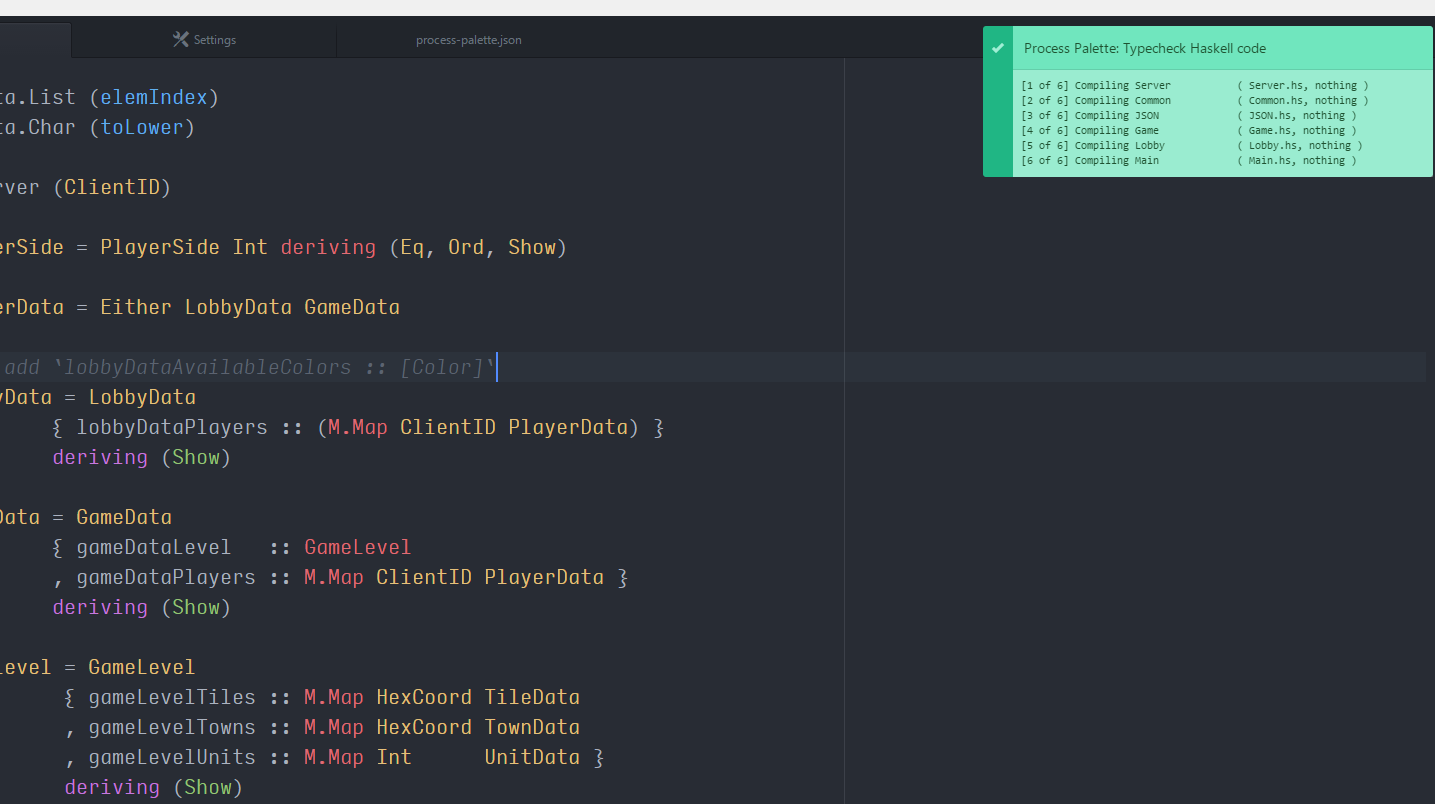
After I have done everything, it looked like this:


I'm excited about Atom at this moment. It is still a little rough around the edges, but looks very promising.